Free for one file at a time: signing, forms, page tools, compression, passwords, watermarks and page numbers. There's no account to create and no daily limit, and PDF Desk doesn't stamp a watermark on your file.
PDF Desk by Gabba Works · a free browser extension for Google Chrome and Firefox
Sign, fill, merge and compress PDFs on your own computer.
Sign PDFs, fill forms, merge, split, compress and add passwords, all on your own computer. Free, with no account. Files stay on your device and never go to a server. Check it yourself: open a PDF, turn off Wi-Fi and keep working.
Add to Chrome, it's free Add to Firefox, it's free
Free from the Chrome Web Store and Firefox Add-ons. Works in Google Chrome and Firefox (version 142 or later) on desktop. Questions? support@gabbaworks.com · See what's included
How it works
- Open a PDF in PDF Desk, from your computer or straight from a browser tab.
- Pick a tool. Sign, fill a form or arrange pages, or open All tools (Ctrl+K) to compress, protect, watermark or number pages.
- Save your copy. It downloads like any other file, and your original stays as it was.
What's included, free
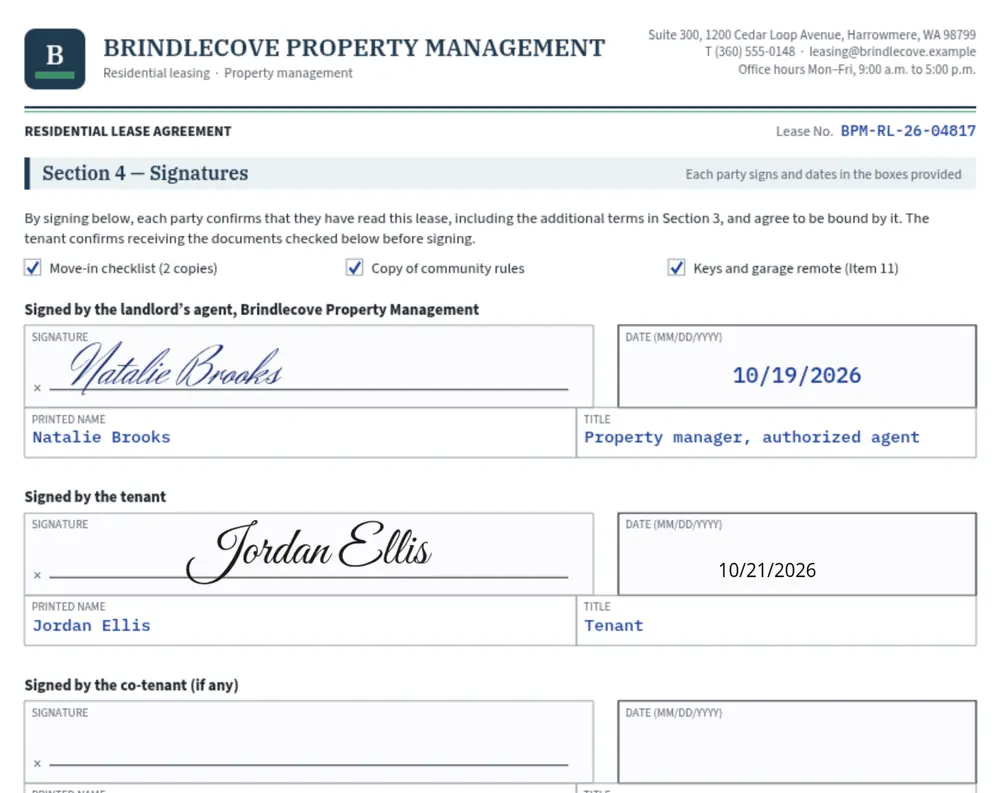
- Sign: draw, type or upload a signature, place and resize it, add today's date, a tick or a line of text, and save your signature for next time
- Fill forms: type into a PDF's existing fillable fields (text, checkboxes, radio buttons and dropdowns), then make the fields uneditable if you like
- Pages: combine PDFs, split by page ranges, and reorder, rotate or delete pages. Fill forms before you merge or split: those steps make form fields uneditable.
- Compress: re-save a PDF losslessly, or shrink its large JPEG images
- Password protect and unlock: lock a PDF with AES-256 encryption, or unlock one you have the password for
- Finishing touches: watermarks, page numbers, headers and footers
- Convert: turn PNG or JPG images into a PDF, or save PDF pages as images
- Every tool saves a new copy, so your original file is never changed.
Step-by-step guides
Where your files go

Your PDFs are processed on your computer. Files stay on your device and never go to a server. PDF Desk has no analytics, tracking or ads, and no account. PDF Desk downloads something in one case, when you ask: if a PDF is open in a browser tab and you click PDF Desk's toolbar button, it fetches that PDF from the site it's on, without your cookies, so you can work on it.
PDF Desk keeps the passwords you type in memory for the task and never saves them. Saved signatures are stored encrypted in this browser, and Delete all saved data, in the Saved tab, removes them and your settings.
PDF Desk doesn't need the internet to work on your files. To see for yourself, open a PDF from your computer, turn off Wi-Fi and keep working. The privacy policy has the details.
Pro: coming soon
A paid Pro upgrade is planned for repeat paperwork: batch processing (many files in one pass), saved templates, profile autofill, searchable PDFs with English OCR, and white-out-and-retype. It isn't on sale yet, and the tools listed above will stay free when it is.
Questions people ask
Can I sign a PDF without Adobe Acrobat?
Yes. PDF Desk runs in Google Chrome or Firefox. Draw, type or upload your signature, place it, and save. You don't need Acrobat, an account or a printer, and the saved PDF has no watermark.
Is this like DocuSign?
No. PDF Desk places your signature on the page as an image, like signing a printout. It doesn't send documents for other people to sign, and it doesn't add a certificate-based digital signature.
Is PDF Desk really free?
Yes. Every tool listed here is free for one file at a time, with no watermark, trial, account or daily limit. Pro, for batch work, is coming later and will be optional. Anything that isn't free is marked before you start, so you never hit a paywall at the save step.
Are my files uploaded?
No. PDF Desk opens, changes and saves PDFs on your computer. It downloads a file in one case: when you click its toolbar button while a PDF is open in a tab, it fetches that PDF from that site so you can work on it. Your files stay on your device and never go to a server.
What does PDF Desk keep on my computer?
Your saved signatures, stored encrypted, and your settings, including a count of your downloads that PDF Desk uses to decide when to ask for a rating. They stay in this browser. PDF Desk doesn't keep copies of your PDFs or its own list of recent files. Your finished file goes wherever you save it, and your browser's downloads list shows it like any other download. To clear what PDF Desk keeps, use Delete all saved data in the Saved tab.
Can it compress a PDF or add a password?
Yes, both are free for one file at a time. Compression works best on PDFs with large photos or scans. Password protection uses AES-256, and PDF Desk can unlock a PDF if you know its password.
Does the person I send it to need PDF Desk?
No. The saved file is an ordinary PDF that opens in any PDF viewer, including password-protected ones, which ask for the password.
Is it a free PDF editor?
It's free for signing, form filling, page tools, compression, passwords, watermarks and page numbers, with no watermark. It can't change text that's already in a PDF.
Will my form work?
If the PDF has standard fillable (AcroForm) fields, you can fill the editable ones: text, checkboxes, radio buttons and dropdowns. Scanned forms have no fields, so you can sign them and place text on them but not type into boxes. XFA forms aren't supported. Typed text currently supports Latin, Greek, Cyrillic and Vietnamese characters; Hebrew, Thai, Hindi, Arabic, Chinese, Japanese and Korean are planned for upcoming versions.
When can I install it?
Now. Get it free from the Chrome Web Store or Firefox Add-ons. It works in Google Chrome and Firefox (version 142 or later) on desktop.
Known limits
- It can't edit or delete text that's already in a PDF, or create new form fields.
- Merging or splitting a PDF flattens its form fields, so fill in forms before you do.
- Form filling works with standard (AcroForm) fields. XFA forms aren't supported: PDF Desk asks before saving a copy without the XFA layer. Some digitally signed PDFs need specialized software.
- Changing a digitally signed PDF breaks its signature. PDF Desk warns you when it finds a digital signature.
- Files attached to a PDF are kept when you sign, fill or otherwise change it, so check for them before you share your copy. PDF Desk doesn't run any scripts a PDF contains.
- Typed text currently supports Latin, Greek, Cyrillic and Vietnamese characters; Hebrew, Thai, Hindi, Arabic, Chinese, Japanese and Korean are planned for upcoming versions.
- To print or search a PDF, download it and open it in your browser.
- Compression shrinks large JPEG images; PDFs that are all text may not get smaller, and then PDF Desk keeps your original. Check the result before you send it.
- Opening a PDF from a browser tab works for files up to 30 MB at a direct PDF link. For anything else, choose the file instead.
- Works in Google Chrome and Firefox (version 142 or later) on desktop.
Questions? Support or support@gabbaworks.com.